


Focusrite Scarlett article
Focusrite Scarlett Explained: Features, Types and Tips
A Focusrite Scarlett interface sits between your guitar, microphone or other audio source and your computer, converting analogue signals to digital.
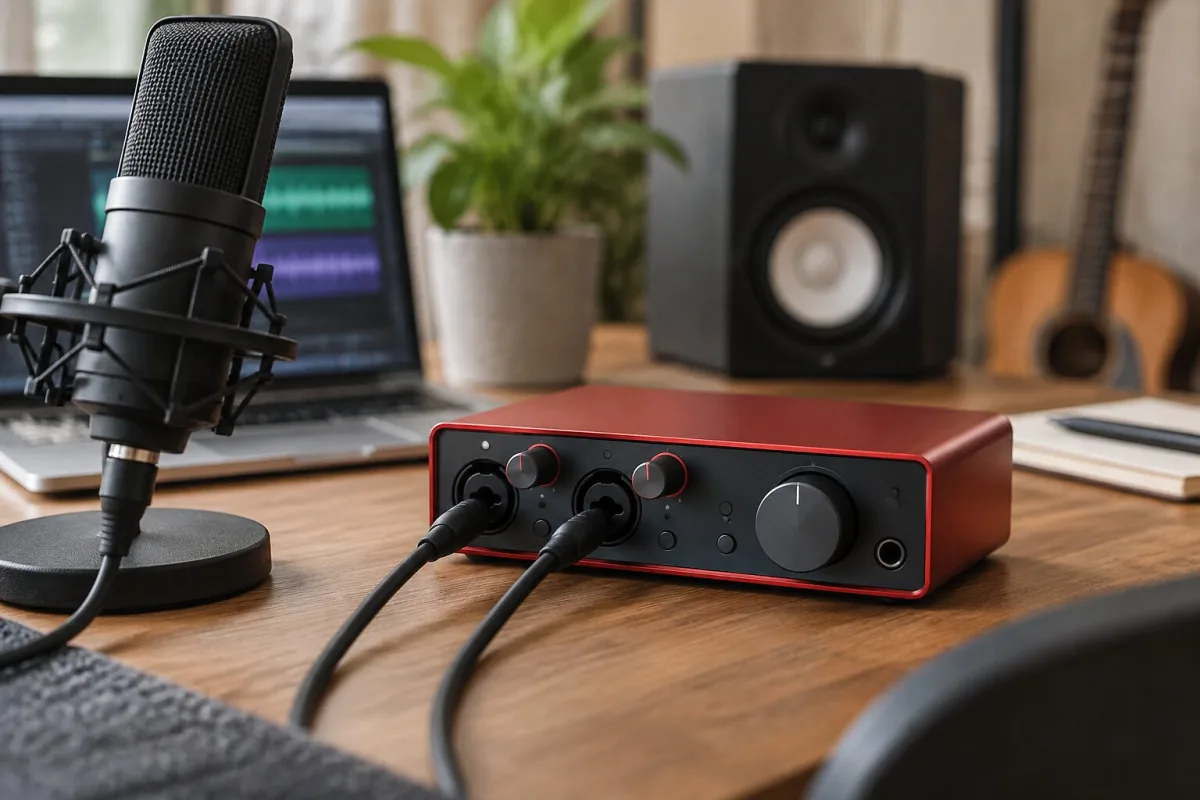
The Focusrite Scarlett range has become the standard starting point for home recording because it does the job without fuss. A Scarlett interface sits between your guitar, microphone or other audio source and your computer, converting analogue signals to digital and back again. It's the bridge that lets you record properly. This guide explains what a Scarlett actually does, which version suits your setup, and what you need to know to get recording without confusion.
What a Scarlett Audio Interface Does
An audio interface converts analogue signals—from your guitar, microphone, or instrument—into digital data your computer can record. It also converts digital audio from your computer back into analogue sound so you can hear what you're doing. Without an interface, you're trying to record through your computer's built-in microphone, which sounds terrible. With a Scarlett, you get proper recording quality through proper equipment.
Focusrite Scarlett interfaces come in different configurations: 2-in/2-out means two audio inputs and two outputs. 4-in/4-out means four inputs and four outputs. More inputs mean you can record multiple sources simultaneously. More outputs mean you can run multiple monitoring setups. Most home recordists start with 2-in/2-out because that's sufficient for recording guitar or vocals one at a time.
Which Scarlett Model Should You Choose?
The Scarlett Solo handles one input and one output—perfect for recording guitar or vocals one at a time. The Scarlett 2i2 adds a second input and second output, letting you record stereo or run two microphones simultaneously. The Scarlett 4i4 and larger models add more flexibility if you're running a more complex setup with multiple microphones or instruments recording together.
For beginners, Solo or 2i2 is adequate. You're unlikely to need the complexity of larger models until your recording situation genuinely demands it. Start small and upgrade when you actually need the extra features.
Sample Rate and Bit Depth: What Actually Matters
Sample rate describes how many times per second the interface samples your audio. 44.1 kHz is CD quality. 48 kHz is professional standard for video work. Higher sample rates capture more detail but require more processing power and storage. For most home recording, 44.1 kHz is perfectly adequate.
Bit depth describes how many levels of volume are captured. 16-bit is CD quality and perfectly adequate for most work. 24-bit is the professional standard and slightly improves resolution. For learning recording, 16-bit/44.1 kHz is fine. You can upgrade to 24-bit/48 kHz later if you want, but it won't transform your recordings if your microphone and mic technique are limiting factors.
Latency: Why It Matters and How to Minimize It
Latency is the slight delay between playing something and hearing it back through your headphones. USB interfaces have some inherent latency because the signal has to travel to the computer and back. Modern interfaces minimise this, and Scarlett interfaces are reasonably good at keeping it low.
If latency bothers you, lower the buffer size in your recording software. Smaller buffer sizes mean less latency but can cause audio problems if your computer isn't powerful enough. Start with a moderate buffer—512 or 1024 samples—and adjust based on what feels comfortable to play through.
Preamps and Gain Staging
The Scarlett has a preamp that boosts microphone signals to usable levels. You'll see a gain knob and usually LED meters showing input level. The goal is to set gain so the signal is loud but doesn't clip (the red LEDs shouldn't light constantly). Aim for a healthy level that leaves headroom—not too quiet, not right at maximum.
This is genuinely important: proper gain staging at the interface level makes everything downstream easier. If your input is too quiet, you'll have to crank everything else. If it's too loud, you'll get distortion. Find the middle ground and your recordings sound better.
Direct Monitoring: Recording and Playing Through Simultaneously
A feature called direct monitoring or "zero-latency monitoring" lets you hear yourself through headphones while recording, with the audio going directly from the input to the headphone output without travelling through your computer. This is genuinely useful because it means you don't experience the latency of the computer's recording software.
The Scarlett has a Mix knob that balances between hearing the incoming signal and hearing playback from your computer. Set it somewhere in the middle and you can hear both what you're playing and any backing tracks from your DAW simultaneously.
Drivers and Software: The Technical Bits
The Scarlett needs drivers—software that makes your computer and interface talk to each other. Focusrite provides these free, and they're reasonably reliable. Install them before you connect the interface and your computer will recognise it properly when you plug it in.
The Scarlett also comes with some basic software—usually a lite version of a DAW and some plugins. These are useful starting points, but you'll probably want to upgrade to a full DAW eventually. That's a separate purchase and decision, but it's good to know upfront.
Conclusion: Scarlett Interfaces Work
A Focusrite Scarlett gets you recording properly without fuss or confusion. Pick the model that matches your current needs—Solo or 2i2 for most beginners. Set your gain properly. Monitor your input levels. Give yourself time to learn how it works. That's sufficient to start recording at a quality level far beyond what your computer's built-in setup can deliver.




Comments