


Waveform DAW article
Waveform Daw for Beginners: A Complete Guide
Waveform DAW works differently than other DAWs, but understanding its approach rewards you with an intuitive, powerful production platform. This beginner's guide shows you how to get started.
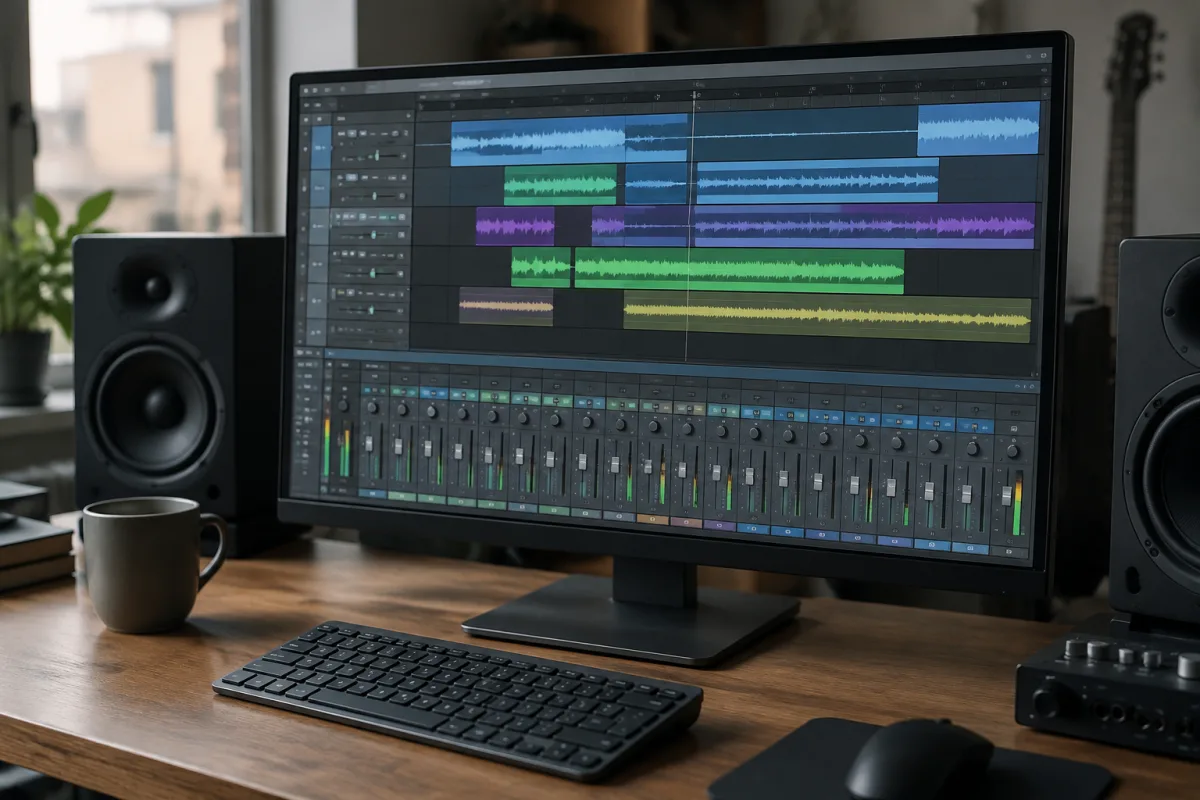
Waveform DAW often flies under the radar for beginners despite being a sophisticated, genuinely capable production platform. If you've heard about Waveform and wondered whether it's worth learning, or you've just installed it and felt overwhelmed by the interface, this guide walks you through the essentials of getting started. You don't need to master every feature; you need to understand the core workflow and gain confidence that you can create music in Waveform from day one.
Understanding Waveform's Approach to Music Production
Waveform DAW takes a different design philosophy than most other DAWs. It's not trying to be Pro Tools, Ableton, or Logic; it's building its own approach to workflow, mixing, and sound design. This is a strength if you're open to learning new patterns, but it can feel alienating if you're expecting Waveform to work like whatever you've used before. The key to getting started is approaching Waveform on its own terms rather than trying to map your existing DAW knowledge directly onto it. Waveform developers have made deliberate choices about how to organise tracks, clips, and mixing; these choices work brilliantly once you understand the logic. Resist the urge to immediately change everything to match a different DAW's workflow; invest a few weeks in learning Waveform's way before deciding whether it suits you.
Projects, Tracks, and the Basic Workflow
Start by creating a new project in Waveform, which opens an empty timeline. Add tracks for your elements—vocals, drums, bass, whatever you're working with. Click to create an audio clip by dragging media into the track or by recording directly. Drag clips around the timeline to arrange your song structure. This core functionality mirrors every other DAW, so you're immediately comfortable. The difference comes in how Waveform presents these elements: tracks are visually distinct, clips have integrated editing capabilities, and the mixing console feels more like a hardware mixer than a software interface. These design choices make sense once you've worked with them for a few hours. Give yourself grace during the learning curve; unfamiliar doesn't mean inferior.
Audio Recording and Virtual Instruments
Recording audio in Waveform is straightforward: arm a track, hit record, and start playing or singing. Monitor your input to make sure signal is coming through—Waveform shows input levels clearly. Like other DAWs, you can layer multiple takes or comp them together. Virtual instruments work similarly: insert a synthesiser or sampler onto a track, then play via MIDI from your controller or draw MIDI notes into the piano roll. Waveform's built-in instruments (Sampler, Eden, Silo) are genuinely capable; you don't need external plug-ins to start creating. This is beginner-friendly because you have professional-quality tools immediately available without plugin shopping confusion.
The Edit View and Detailed Editing
Waveform's Edit View is where detailed audio and MIDI editing happens. Double-click an audio clip to see the waveform and make edits: adjust volumes, apply effects, or conform timing. For MIDI, the piano roll appears in the same space with note-editing tools. What makes Waveform's editing approach distinctive is integration: you're not bouncing between separate windows; everything happens in a unified space. This feels efficient once you're accustomed to it but can feel cluttered initially. Spend time experimenting with editing tools rather than reading tutorials; hands-on exploration teaches faster than documentation.
Mixing: The Console and Effects
Waveform's mixing console sits on the right side of the arrange window by default. Add effects to tracks by clicking insert points and selecting from the plugin library. Unlike some DAWs that hide mixing behind additional windows, Waveform keeps mixing visible alongside arrangement, encouraging you to mix as you compose rather than waiting until after-the-fact. This approach works beautifully for beginners because mixing feels integrated into the creative process rather than a separate discipline. Start by adding simple effects—EQ, compression, reverb—to individual tracks and listening to how they change your sound. This experiential learning builds understanding faster than plugin manuals.
Common Beginner Mistakes to Avoid
One frequent mistake is assuming Waveform is missing features because they're not immediately visible. Waveform packs tremendous power into its interface; features exist but are sometimes in unexpected places. Rather than concluding Waveform can't do something, dig into menus or search YouTube tutorials. Another error: fighting Waveform's design rather than embracing it. New users often try to force familiar workflows from other DAWs onto Waveform and feel frustrated when it doesn't work the same. Commit 2–3 weeks to learning Waveform's way before deciding whether it suits you. The learning investment pays off if Waveform's workflow clicks for you. Also avoid drowning in effects and plugins immediately. Waveform's built-in tools are excellent; learn these thoroughly before adding external software. This approach builds solid fundamentals and prevents plugin-shopping distraction that slows progress.
Many beginners also skip the preferences menu, leaving settings at defaults that don't match their workflow. Spend 15 minutes exploring preferences: set your sample rate, buffer size, input/output routing, and shortcut keys to match how you work. Small customisations make Waveform feel significantly more natural. Additionally, don't use every feature simultaneously. Start with basic arrangement, recording, and simple effects. Add advanced features (automation, sidechain, complex MIDI editing) once these basics feel comfortable.
Building Your First Complete Track in Waveform
Rather than learning feature-by-feature, build a simple complete track from concept to finished export. Choose one musical idea—a drum loop, a chord progression, a melody. Record or program it into Waveform using the core tools you've learned. Add supporting elements (bass, harmony, rhythm). Mix using basic effects. Export as audio. This complete journey from blank project to finished track teaches more than isolated feature practice because you experience Waveform's full workflow in context. You'll encounter problems, solve them, and develop confidence that you can create music in this DAW. After completing one track this way, the second track requires noticeably less effort.
Waveform's Plugin Support and Expansion
Waveform supports AU and VST plugins, meaning you can expand your tool palette with thousands of third-party options. However, beginners should resist this temptation initially. Waveform's included plugins are genuinely professional-grade; learning these thoroughly is more valuable than chasing trendy external plugins. Once you've completed several tracks using built-in tools and understand mixing fundamentals, then explore external plugins intentionally based on specific needs rather than novelty. This measured approach prevents the "overwhelmed by options" trap that freezes many producers.
Learning Resources and Community
Waveform has an active community and growing tutorial ecosystem. The official documentation is solid, and YouTube tutorials range from beginner-friendly to advanced. Find creators whose teaching style resonates with you and follow their Waveform content consistently. Avoid topic-hopping; depth beats breadth when learning a DAW. Also join Waveform communities where you can ask specific questions without judgment. Experienced Waveform users are generally welcoming to beginners and quick to help solve problems. This community support is invaluable when you hit frustrating moments.
Developing Your Unique Workflow
After your first few tracks, you'll develop preferences about how you work: whether you prefer building arrangements in the arrange view or drawing everything in the piano roll, whether you mix as you create or save mixing for the final pass, how you organise your track templates and effects chains. These preferences are personal and will emerge naturally through practice. Don't feel pressured to match online tutorials exactly; once you understand Waveform's core functionality, adapt it to your working style. This personalisation makes Waveform feel like your tool rather than a DAW you're forcing yourself to use. Explore the ultimate guide to Waveform DAW for deeper dives into advanced features once you're comfortable with the basics.
Conclusion
Getting started with Waveform DAW means accepting that it works differently than familiar DAWs and investing time in understanding that difference rather than fighting it. Master the basic workflow: creating projects, recording audio, adding virtual instruments, mixing with built-in effects. Complete simple tracks from concept to export to build confidence. Avoid the mistakes of feature-chasing and plugin-shopping before mastering fundamentals. Learn Waveform on its own terms, develop your personal workflow once basics are solid, and you'll discover a capable, intuitive production platform that genuinely rewards deep engagement. The learning curve is moderate, but the payoff is a DAW that feels natural and powerful once you've invested the initial effort.



Comments