


Download Pro Tools article
Download Pro Tools for Beginners: A Complete Guide
Getting Pro Tools installed shouldn't feel overwhelming. This beginner-friendly guide walks you through downloading, installing, and activating Pro Tools without the jargon.
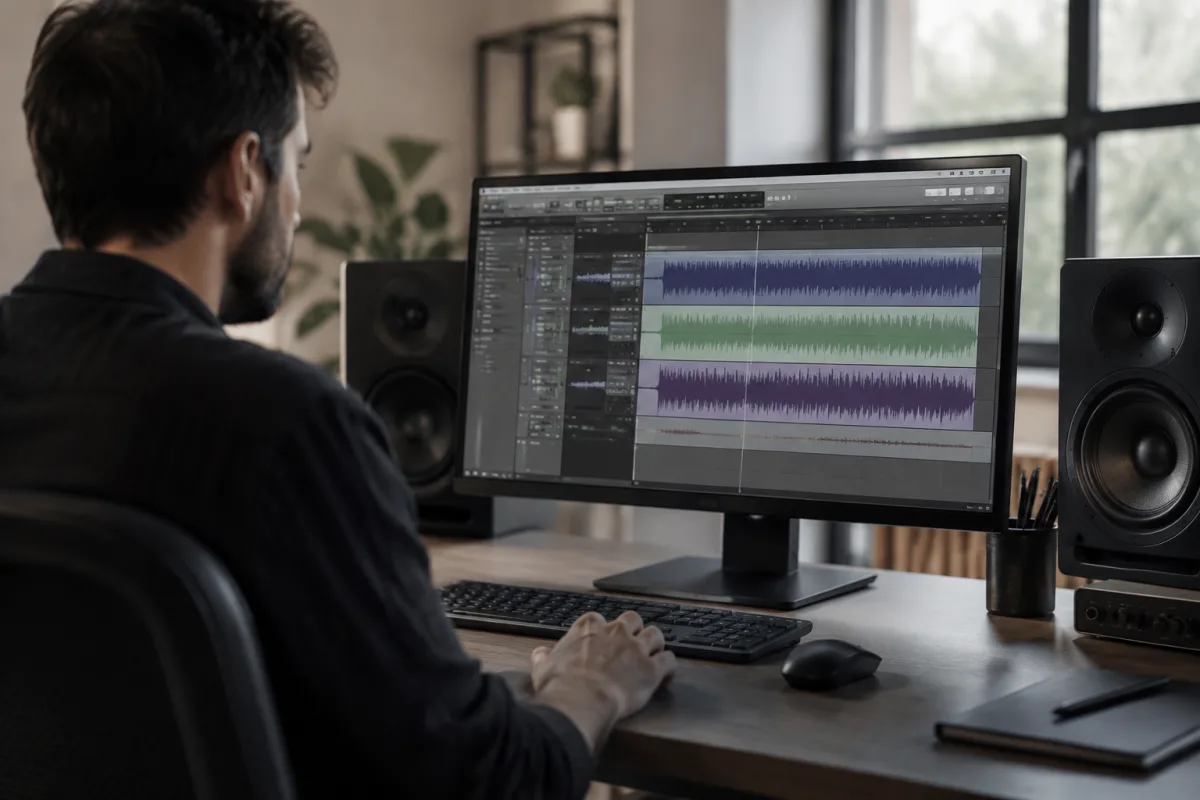
Getting Pro Tools installed shouldn't feel like climbing Everest, yet plenty of first-timers stumble through the download process feeling lost and overwhelmed. The good news? It's genuinely straightforward once you know where to look and what to expect. This guide walks you through each step without the jargon, giving you the confidence to download Pro Tools properly and get making music.
Understanding Pro Tools Before You Download
Pro Tools is industry-standard digital audio workstation (DAW) software used in studios worldwide. The thing that trips up beginners is that Avid, the company behind Pro Tools, offers several different versions—and they require different download paths. Rather than hunting for the "right" one, understand upfront that you've got options depending on what you're doing and what you're willing to spend.
There's Pro Tools | Intro (free but limited), Pro Tools | Artist (still free, more features), and Pro Tools | Studio (the full version you buy). Each one downloads from the same place, but knowing which version suits you makes the whole process cleaner. Most beginners start with the free versions, which is sensible—you get genuine capabilities without investment.
One crucial thing: Pro Tools doesn't work exactly like other DAWs. Its interface, workflow, and way of thinking about recording differs from Logic Pro or Ableton Live. That's fine, but it means downloading Pro Tools is just the first step. You'll want resources to learn it properly.
Where to Actually Download Pro Tools
The official Avid website (avid.com) is your only trustworthy source. Seriously—avoid torrents, sketchy alternative download sites, or outdated links from old forum posts. Go directly to Avid's download page, create an account (free), and grab your version from there. This takes five minutes and keeps your computer safe from dodgy software bundles.
Once you're on Avid's site, navigate to Downloads and look for Pro Tools. You'll see your version options listed clearly. Select your operating system (Windows or Mac), choose your version, and download the installer. Don't overthink it—the page layout is sensible and step-by-step.
The download file itself is substantial (several gigabytes), so use a stable internet connection. A dodgy WiFi connection mid-download is genuinely annoying, forcing you to restart. Wired connection or solid WiFi matters here.
What You'll Need on Your Computer
Before downloading Pro Tools, make sure your computer meets the basic requirements. Pro Tools works on both Mac and Windows, but each has minimum specifications. Check Avid's system requirements page—you'll need a particular macOS version or Windows version, enough hard drive space (around 20 GB), and adequate RAM (8 GB minimum, 16 GB better).
Most modern computers meet these specs without hassle. If you're running ancient software or a budget laptop from seven years ago, there's a chance Pro Tools might struggle. It's worth checking—nothing's worse than downloading software only to discover it won't run on your machine.
You'll also need a free Avid account with activation. Avid expects you to register, get an account number, and activate your license online. It's all straightforward and free for the entry-level versions. Make sure you write down your account details somewhere safe.
A Sensible Beginner Download Process
Here's the actual sequence that works smoothly. First, visit avid.com and create or log into your account. Second, navigate to the Pro Tools download page. Third, select your version—if you're completely new, start with Pro Tools | Intro. Fourth, choose your operating system and download the installer file.
Fifth, run the installer once it finishes downloading. Windows users will double-click the .exe file; Mac users double-click the .dmg file. The installation wizard appears, asking where you want to install Pro Tools. Accept the default location unless you have a specific reason not to. Let it finish—this takes a few minutes.
Sixth, after installation completes, launch Pro Tools. It'll ask you to activate your license. Connect to the internet, log into your Avid account, and authorise the software. Without this step, Pro Tools limits functionality or doesn't run at all. It feels bureaucratic, but it's quick.
Common Beginner Mistakes to Avoid
The first mistake is downloading from anywhere except Avid's official site. I mention this twice because it matters. Pirated or cracked versions exist, and they're tempting if you think Pro Tools is too expensive. Resist that temptation—they compromise your security and deny you updates and support.
The second mistake is not checking your system requirements. Download Pro Tools, launch it, then discover it won't run properly. Check first, download second.
The third mistake is ignoring the activation step. Some beginners complete installation, launch Pro Tools, see activation screens, and panic. It's normal—just proceed. You're connecting your computer to Avid's servers so they know how many machines your license covers.
The fourth mistake is not allocating enough disk space. Pro Tools itself is big, but your recording projects will be bigger. If your hard drive is nearly full, Pro Tools performance suffers. Keep at least 50 GB free for comfortable working.
Installing Audio Drivers and Hardware
Once Pro Tools is installed and activated, you'll want to connect audio equipment—an audio interface, headphones, studio monitors. Before doing this, install the drivers for your audio interface. These come on a CD or from the manufacturer's website. Install them first, then connect the hardware, then open Pro Tools.
Pro Tools is very particular about audio hardware. It needs proper drivers to recognise your interface. Plug in audio equipment without drivers installed, and Pro Tools might not see it or behave strangely. Drivers first, hardware second, software third—that order matters.
Your First Launch: What to Expect
The first time you launch Pro Tools after download and activation, you'll see the interface. It looks intimidating. There are more buttons, windows, and menus than you can process at once. That's normal. Every beginner feels overwhelmed initially. The interface makes sense once you start using it, I promise.
Create a new session to get comfortable. Give it a name, choose your sample rate (44.1 kHz is fine for learning), and hit Create. You're now in the Pro Tools workspace. Don't panic about the menu options—you'll learn them gradually. For now, just explore. Create tracks, record something, play it back. Making mistakes in a throwaway session teaches you more than reading manuals.
Getting Support and Learning Resources
After you download Pro Tools and get it running, you'll want to learn how to actually use it. Avid provides documentation on their website. YouTube has countless Pro Tools tutorials. Online communities (Reddit's r/protools, for example) have genuinely helpful people answering beginner questions.
One advantage of starting with free Pro Tools versions is that you're learning the exact same interface and workflow as professionals using Pro Tools | Studio. Your learning translates directly. There's no "beginner version learning" that doesn't apply later—you're learning the real thing.
For context, you might want to compare Pro Tools with other DAWs before committing. If you're evaluating music production software generally, our complete guide to download Pro Tools covers the broader context and alternatives in more depth.
Troubleshooting Common Download Issues
If your download stalls halfway, cancel it and try again. Internet hiccups happen. If the installer won't run, try right-clicking it and choosing "Run as Administrator" (Windows) or checking if it's been quarantined (Mac). Sometimes security software blocks installers unnecessarily. Whitelist the Avid installer and try again.
If Pro Tools launches but won't recognise your audio interface, check that drivers are installed properly. Restart your computer—genuinely, restart. Unplug your audio interface, restart, plug it back in, then launch Pro Tools. This fixes about seventy percent of audio hardware recognition issues.
Moving Forward After Download
You've now successfully downloaded, installed, and activated Pro Tools. That's the hardest part for many beginners—everything else is learning, which is faster and more fun. Spend your first sessions recording simple sketches, learning basic editing, understanding track operations.
Pro Tools is a proper tool, not a toy. That means it rewards deliberate learning and practice. The download is just the starting point. Embrace that you don't know how to use it yet—nobody does at first. You've cleared the installation hurdle; now you get to enjoy the actual creative work.


Comments