


Beat Making Software Buying guide
Beat Making Software: A Complete Buyer's Guide
Overwhelmed by beat-making software choices? Learn how to evaluate options, understand price tiers, and find the perfect tool without overspending.
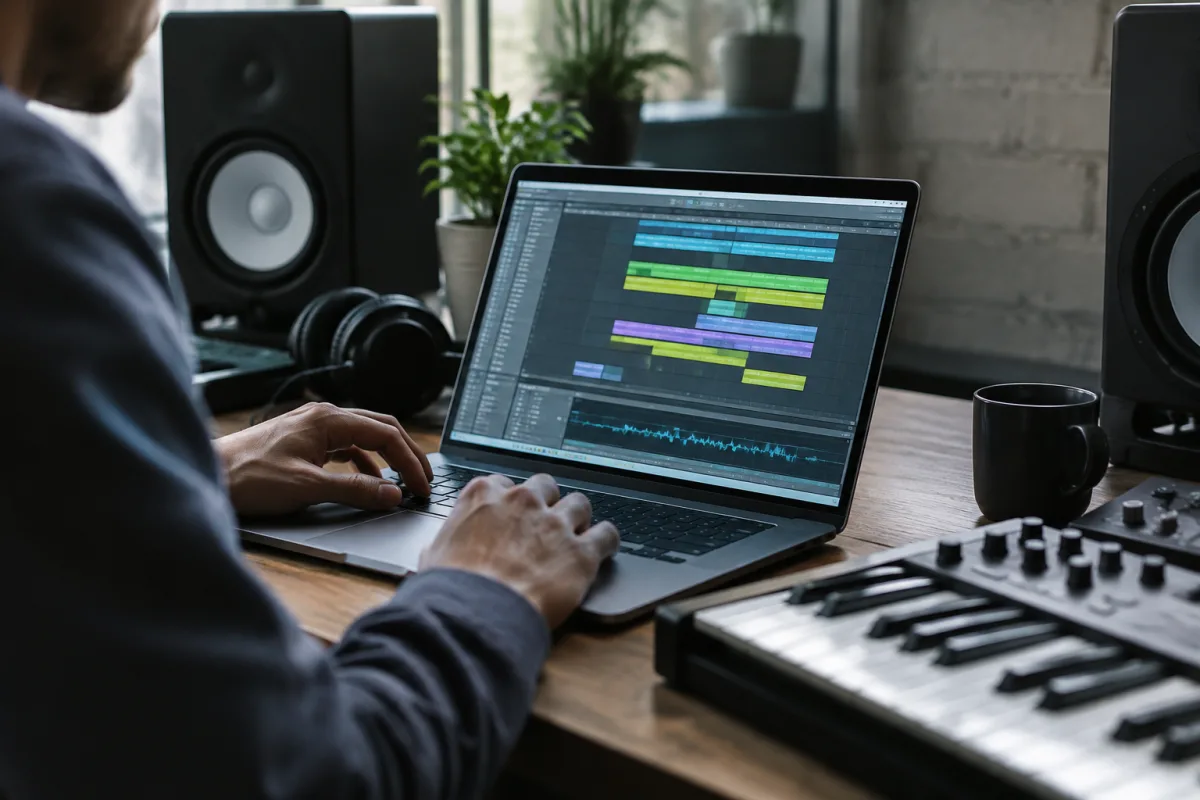
Choosing beat-making software feels overwhelming when you're faced with dozens of options ranging from free tools to professional DAWs costing hundreds of pounds. The confusion isn't your fault—vendors market everything from a simple looper to a full production suite as "beat-making software." This guide cuts through that noise and shows you exactly what to evaluate when choosing beat-making software, what price tiers actually deliver, and how to avoid wasting money on the wrong tool.
The Core Decision: Specialised Beat-Maker vs. Full DAW
Before looking at specific software, understand this fundamental split: beat-making software comes in two categories, and they serve different needs.
- Specialised beat-makers (£20–150). Tools designed specifically for beat-making workflows: drum machines, step sequencers, sampler interfaces, and built-in sound libraries. Examples include Ableton Live Lite (£99), Maschine (£100–500), FL Studio (£200, one-off purchase), and BeatMaker 3 (£15–30). These prioritise speed and hands-on control—you're making beats in a tactile, immediate interface.
- Full DAWs with beat-making capabilities (£100–400 or subscription). General-purpose music production software (Ableton Live Standard/Suite, Logic Pro, Studio One) that includes extensive beat-making tools. These offer broader functionality—mixing, synthesis, arrangement, mastering—but a steeper learning curve for beat-making specifically.
If you want to make beats quickly and intuitively, a specialised tool is usually faster. If you want to make beats and then arrange, mix, and produce a full track, a full DAW is better long-term. Know which category suits your actual workflow before you spend money.
Price Tiers: What Your Budget Actually Buys
Beat-making software is sold across four distinct price bands. Here's what each tier delivers:
- Free (£0). Genuinely capable tools: BeatMaker 3 (iOS, sometimes free), GarageBand (Mac/iOS), Soundtrap (browser-based), and Audacity (mixing only). Free software has limitations—limited sounds, fewer effects, fewer sequencing options—but you can absolutely make quality beats with it. Perfect for learning or casual production. The catch: free software often has steeper learning curves or fewer export options.
- Budget (£15–60). Entry-level beat-makers like BeatMaker 3 (iPad, £15–30), Caustic (£5–15), or EZ Drummer Essentials (£60). These deliver real functionality—drum machines, sample editing, effects, MIDI support. Much more capable than free tools while remaining genuinely affordable. Best value for beginners who want serious software without a big spend.
- Mid-range (£60–200). Professional-quality beat-makers: Ableton Live Lite (£99), Maschine (£100–200 depending on bundle), BandLab (free but more capable than others at this level). Also includes entry-level full DAWs like Studio One Artist (£80). These are used professionally—you're getting genuine capabilities, a learning curve that's steep but worthwhile, and tools that scale with your ambitions.
- Professional (£200–400 or subscription). Ableton Live Standard (£400), FL Studio (£200 one-off), Logic Pro (£200), or subscription services like Splice (£5–25/month for plugins and sounds). At this tier, you're getting nearly everything professionals use, with the main limits being cosmetic or based on taste rather than functionality. If you're serious, this is where you invest.
A common mistake: beginners overspend on expensive software expecting it to make them better producers. In reality, a £30 beat-maker in the hands of someone who actually uses it beats a £400 DAW gathering dust. Buy the tier you'll actually use, and upgrade when you outgrow it.
Key Features to Check Before You Buy
Not all beat-making software is equal. Before you commit, verify these features matter for your workflow:
- Workflow speed. Can you trigger drums, chop samples, and arrange a beat without diving into menus? The best beat-making software is fast and tactile. Watch a tutorial video and ask yourself: could I make a beat in under an hour, or is this bogged down in interface complexity?
- Built-in sounds and samples. Do you like the included drum kits, synths, and samples, or would you immediately want to import your own? Free and budget software often have weaker sound libraries than professional tools. If you plan to use stock sounds, try the demo and listen critically.
- Sample editing and chopping. If hip-hop or sample-based production interests you, can the software easily slice, pitch-shift, and retime samples? Some beat-makers are weak at this. Check the demo or a tutorial video—sample workflow should be fast, not tedious.
- MIDI support and plugin compatibility. Does the software support MIDI controllers? Can you use VST plugins (software instruments and effects from other companies)? This matters if you want flexibility or plan to expand your toolkit later. Free or budget software sometimes lacks this.
- Export and file format options. Can you export stems (separate drum, bass, and melody tracks)? Can you export to formats other producers use? Some budget software limits export quality or formats. Check this before buying.
- Platform availability. Is it Windows only, Mac only, or cross-platform? Does it run on iPad/mobile? Some beat-makers are iOS-exclusive; others are desktop-only. Ensure it runs where you work.
Don't get seduced by features you won't use. A beat-maker with 500 sounds but an unintuitive interface is worse than one with 50 sounds but lightning-fast workflow. Focus on what you'll actually use daily.
The Genre Factor: Matching Software to Style
Different genres have different beat-making demands. Here's how to think about it:
- Hip-hop and trap. Look for software strong in sample chopping and drum-machine-like sequencing. FL Studio (£200) and Ableton Live (£99–400) are the industry standard here. Maschine (£100–500) is also excellent for beat chopping and hands-on control.
- Electronic dance music (EDM) and house. A full DAW with strong synth and effects capabilities is ideal. Ableton Live, Logic Pro, or Studio One. Specialised beat-makers can work, but you'll quickly want synthesis and arrangement tools.
- Lo-fi and chill beats. Nearly any software works fine. BeatMaker 3 (£15–30), Soundtrap (free), or a full DAW—the aesthetic is more about your sound design choices than the software. Don't overspend for this.
- Podcast beats and spoken-word production. Audacity (free) plus a beat-maker or DAW. You're doing more editing than sequencing, so a general audio editor is essential alongside a beat tool.
If you're unsure what genre you'll focus on, stick with a mid-range full DAW (Ableton Live Lite, Logic Pro, or Studio One Artist). These are versatile across all genres. Genre-specific software can wait until you know what you actually make.
Common Buying Mistakes to Avoid
Save money and frustration by knowing these pitfalls:
- Buying expensive software before trying it. Use the trial version first. Most professional beat-making software offers 30-day trials with no limitations. Trial it thoroughly before spending. A software that's perfect for someone else might feel awkward for you.
- Buying the "most features" when you need simplicity. A beat-maker with 1,000 sounds and 50 effects is worse than one with 100 sounds and a clear workflow if you spend half your time navigating menus. Beginners benefit from focus, not maximum options.
- Ignoring platform requirements. Some software is Windows-only, some is Mac-only, and some works on iPad but not desktop. Check your device before buying. A £300 DAW you can't run on your computer is a very expensive mistake.
- Forgetting about CPU requirements. Older computers struggle with some professional software. Check the system requirements before buying. You might need to budget for a hardware upgrade alongside the software purchase.
- Buying plugins and sounds before you've mastered the core software. Beginners often overspend on sample packs and plugin bundles before learning the software they already own. Master what you've got first, then add more sounds.
- Equating price with quality. A £500 DAW isn't five times better than a £100 one. The difference is features and customisation, not inherent quality. For beat-making at any level, mid-range software is genuinely sufficient.
Free Trials and Money-Back Guarantees: Use Them
Before spending money on beat-making software:
- Download the trial version. Most professional beat-makers and DAWs offer 30-day trials with no limitations. Use the full trial period. Load sample files, try tutorials, and see if the workflow clicks for you.
- Check the return policy. Many vendors (Ableton, Image-Line, Presonus) offer 30-day money-back guarantees. If you buy and hate it, you can return it. This removes much of the risk.
- Watch tutorials before buying. YouTube is full of 20-minute workflows using specific software. Watch someone actually making a beat in your potential software. If it looks intuitive and fast, it probably is.
A 30-minute trial session is worth more than any article. Use that time well before you commit your money. For an in-depth overview of beat-making software categories and capabilities, see our comprehensive beat-making software guide.
The Honest Recommendation: Where to Start
If you're genuinely unsure which software to buy and want a single recommendation for a beginner:
- Total budget under £30: BeatMaker 3 (iPad or Android) if you have a tablet, or Soundtrap (free, browser-based). Both are capable, intuitive, and have enough sounds to learn on.
- Budget £60–120: Ableton Live Lite (£99). It's the industry standard, has excellent tutorials, and the learning curve is steep but rewarding. If you stick with beat-making, you can upgrade to Live Standard later.
- Budget £200+: FL Studio (£200 one-off) or Ableton Live Standard (£400). At this tier, you're buying professional software you'll use for years. FL Studio is hip-hop-friendly; Ableton is more versatile. Choose based on genre and workflow preference.
Whatever you choose, commit to it for at least three months. The best beat-making software for you is the one you actually use, not the most expensive option.
FAQ
Is free beat-making software good enough? Yes, absolutely. Soundtrap (browser-based) and BeatMaker 3 are capable enough to make professional-quality beats if you know what you're doing. The limitation isn't quality—it's features and customisation. Free software is ideal for learning and casual production.
Should I buy a full DAW or a specialised beat-maker? If you only want to make beats and export them, a beat-maker (FL Studio, Ableton Live Lite, Maschine) is faster and more intuitive. If you want to arrange, mix, and produce full songs, a full DAW is better long-term. Most professionals use a full DAW and become fast at the beat-making portion of it.
Can I use beat-making software on a Mac and Windows? Most professional software runs on both. Some budget or free options are platform-specific. Check before buying. The good news: nearly all mid-range and professional options are cross-platform.
Do I need a MIDI controller to use beat-making software? No. All beat-making software can be controlled with a keyboard and mouse. A MIDI controller (£50–300) makes the workflow faster and more intuitive, especially for drum-machine-style sequencing. But it's optional, not required.
What's the difference between a DAW and beat-making software? A DAW (Digital Audio Workstation) is general-purpose music production software with recording, editing, mixing, and arranging capabilities. Beat-making software is specifically optimised for making beats—usually with a drum machine interface and sample workflow. DAWs can do everything beat-makers do, but beat-makers are usually faster for that specific task.
How do I know if a beat-making software will work on my computer? Check the system requirements on the vendor's website. Look at your computer's operating system (Windows or Mac), processor, RAM, and free disk space. Compare to the software's minimum requirements. If your computer doesn't meet the specs, either upgrade or choose software with lower requirements. This is important—buy software that actually runs on your hardware.


Comments