


Ableton Suite Download article
The Complete Guide to Ableton Suite Download
Ableton Suite represents the professional standard for music production. Our comprehensive guide walks you through downloading, installing, and activating Ableton Suite on your computer, plus tips for getting started.
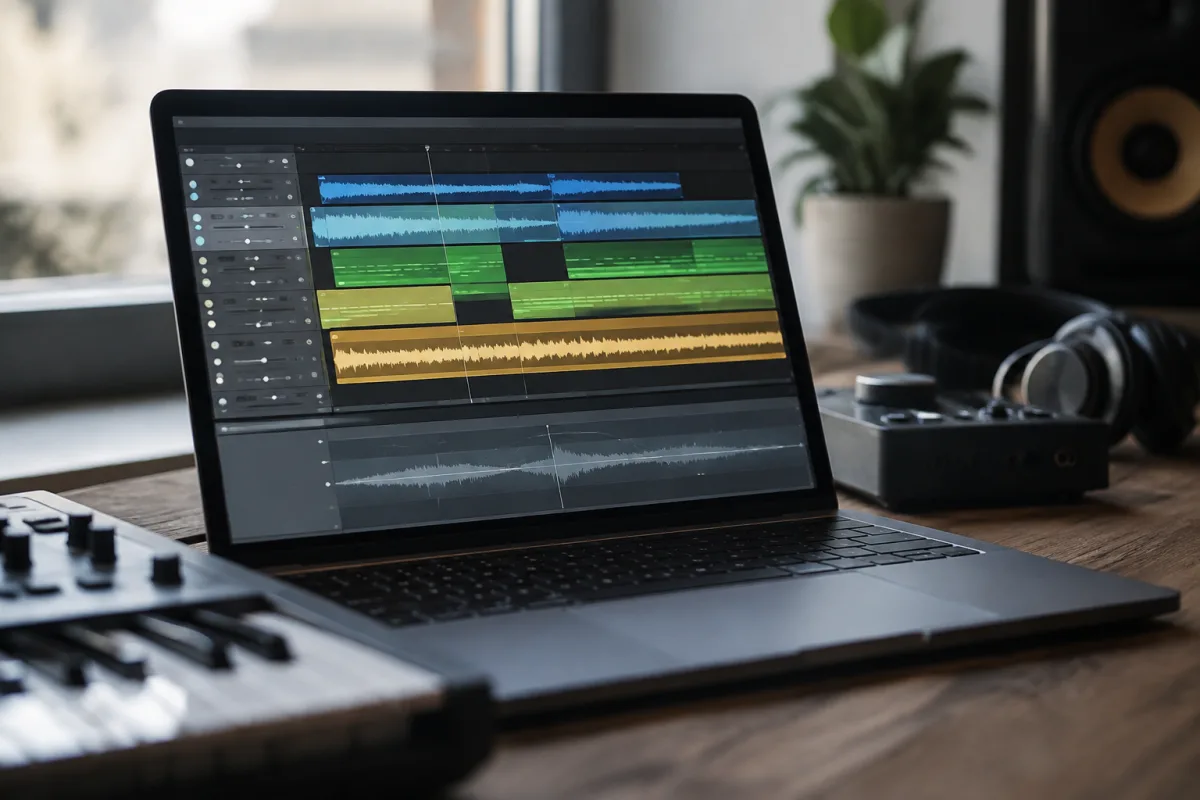
Ableton Suite represents the professional standard for music production, offering a comprehensive integrated environment that combines recording, composing, arranging, mixing, and performing capabilities in a single package. Whether you're establishing a home studio for the first time or upgrading from Ableton Live Lite, understanding how to properly download and install Ableton Suite ensures you get the most from your investment and avoid common pitfalls that plague new users.
Understanding Ableton Suite vs Other Ableton Versions
Ableton offers multiple product tiers, each with different capabilities. Ableton Live Intro represents the entry-level option, providing basic recording and sequencing. Ableton Live Standard expands this with greater flexibility and additional instruments. Ableton Suite, however, is the complete professional package. It includes everything from the other versions plus Max for Live—a visual programming environment that allows you to create custom instruments, effects, and MIDI tools—and an expanded collection of sounds, effects, and utilities.
Understanding these differences before downloading is crucial. Many users purchase Ableton Suite expecting specific features, only to discover they needed to download a different version or upgrade path. The suite's inclusion of Max for Live alone justifies its premium price for anyone serious about sound design or creating bespoke tools.
System Requirements for Ableton Suite Download
Before downloading Ableton Suite, verify your computer meets the minimum specifications. The software runs on both macOS and Windows, though requirements differ slightly.
macOS requirements: Ableton Suite runs on Intel and Apple Silicon Macs. For Intel machines, macOS 10.11.6 or later is required; Apple Silicon users need macOS 11 or later. However, Ableton recommends using recent OS versions for optimal stability and performance. Your Mac should have at least 4 GB RAM, though 8 GB or more is practical for serious music production. Approximately 5 GB of storage space is needed for Ableton Suite plus sample libraries.
Windows requirements: Windows 10 or 11 is supported. Your system should have at least 4 GB RAM (8 GB recommended), and a multicore processor improves performance notably. You'll need roughly 5 GB of free storage, though this grows quickly once you add third-party libraries and project files.
How to Download Ableton Suite
The official method for downloading Ableton Suite is through Ableton's website. Navigate to ableton.com and locate the download section. You'll need to create an Ableton account or log in if you already have one. This account ties your licence to your Ableton ID, which is essential for the installation process.
During the download process, Ableton asks you to choose your operating system and provides download links for the latest stable version. The download file is typically 800 MB to 1 GB, depending on which version and sample packs are included. Using a stable internet connection is recommended—interrupting a large download often requires starting over entirely.
Avoid downloading Ableton Suite from unauthorised third-party sites. Pirated or compromised versions expose your computer to malware and guarantee you won't receive updates, security patches, or official support. The legitimate version remains the only safe and legal option.
Installation Steps for Ableton Suite
Once downloaded, follow these steps to install Ableton Suite correctly:
- Locate the installer: Navigate to your Downloads folder and find the Ableton Suite installer. On Windows, this appears as an .exe file; on macOS, as a .dmg file.
- Launch the installer: Double-click the installer to begin the setup process. Windows may ask for administrator permissions—allow this. On macOS, you'll see an installation dialogue.
- Accept licence terms: Read and accept Ableton's End User Licence Agreement. Ableton Suite is licenced software; understanding the terms prevents future confusion about usage rights.
- Choose installation location: The installer suggests a default location. For most users, accepting this location works fine. Ensure your chosen drive has sufficient free space (at least 10 GB recommended).
- Complete installation: Click "Install" and wait for the process to finish. This typically takes 5–10 minutes, depending on your disk speed.
- Launch Ableton Suite: Once installation completes, launch the application. On first run, you'll be prompted to activate your licence.
Activating Your Ableton Suite Licence
Activation is a critical step often overlooked by new users. When you launch Ableton Suite for the first time, the software asks you to either log in with an existing Ableton account or create a new one. Using the same account where you purchased the licence is essential.
Ableton Suite operates on an indefinite licence—once activated, you own the version you installed. However, you only receive free updates for one year after purchase. After that period, updating to major new versions requires payment, though minor updates remain free. Understanding this update policy prevents surprise costs later.
If you're installing Ableton Suite on multiple computers you own personally, you can activate on both, though only one installation can run at a time. If you need to move your licence to a different computer, you can deactivate it from the old machine and reactivate on the new one.
Downloading Additional Content for Ableton Suite
Ableton Suite includes a substantial library of sounds, loops, and instruments, but many producers want more. After installation, Ableton Pack Manager allows you to download additional sound packs and sample libraries directly within the software. These packs expand your creative palette with sounds from professional producers and sound designers.
Browser organisation becomes important once you accumulate multiple packs. Ableton's browser system allows you to tag, colour-code, and categorise packs, making it easy to find the sounds you need during creative sessions. Taking time to organise your Ableton Suite library immediately after downloading new content saves hours of searching later.
Troubleshooting Ableton Suite Download and Installation Issues
Occasionally, downloads fail or installations encounter errors. If your download interrupts, restart from Ableton's website—the system typically resumes rather than restarting entirely. For installation errors, ensure your computer isn't running antivirus scans during installation, as security software sometimes blocks legitimate operations.
If Ableton Suite refuses to launch after installation, try updating your audio drivers. Many startup problems stem from incompatible or outdated audio device drivers, not Ableton itself. Reinstalling Ableton Suite occasionally resolves persistent issues, though this should be a last resort after checking driver updates.
Getting Started After Downloading Ableton Suite
With Ableton Suite successfully downloaded and installed, take time to familiarise yourself with the interface before diving into production. The software's layout divides into Clip View (for editing details) and Arrange View (for song structure). Recording audio and MIDI is straightforward—select a track, arm it, and press Record. Ableton Suite's included tutorials and lessons within the software provide excellent guidance for newcomers.
Consider downloading Ableton's official tutorial packs from their Learning Centre. These resources guide you through key workflows, from recording your first guitar part to building a full track. Investing in this foundational knowledge immediately after your Ableton Suite download accelerates your learning curve significantly.


Comments