


Audio Mixer with Bluetooth article
Audio Mixer With Bluetooth for Beginners: A Complete Guide
An audio mixer with Bluetooth isn't scary once you understand the basics. This guide walks you through plugging in, raising faders and mixing multiple sources—no jargon, no intimidation.
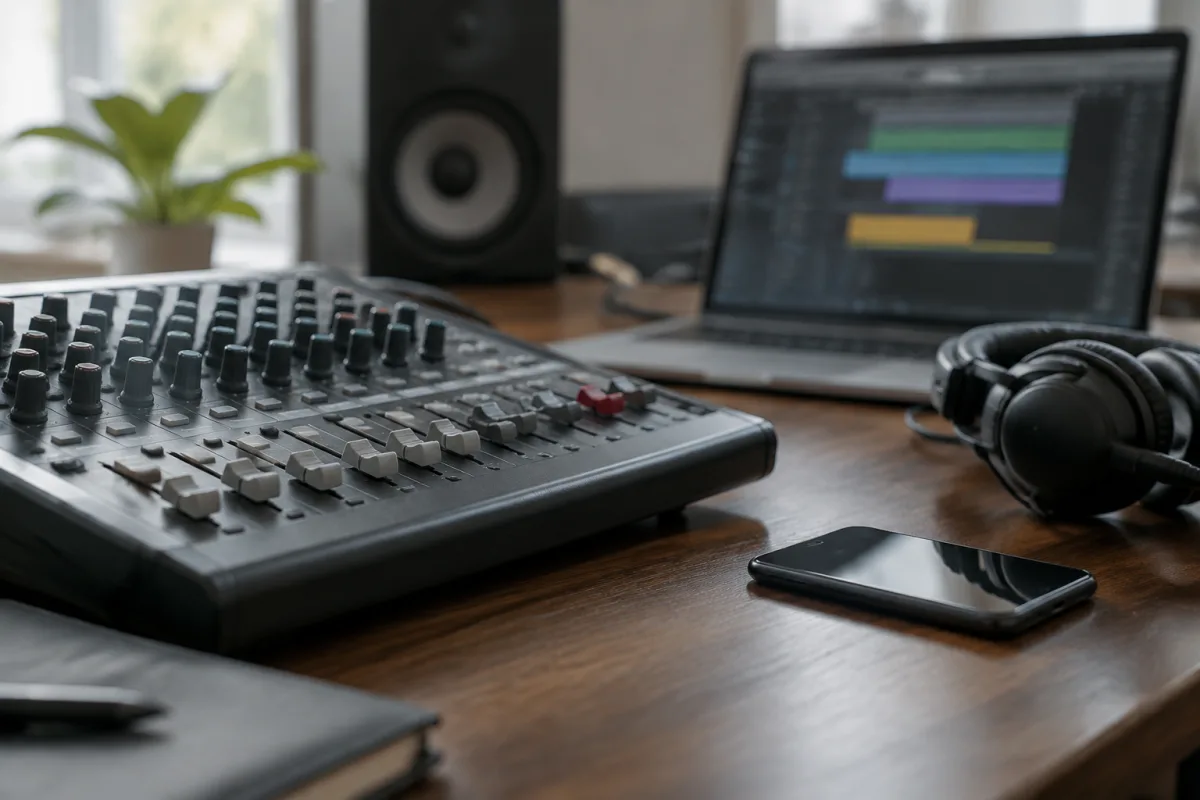
An audio mixer with Bluetooth sounds complicated, but it's actually one of the friendliest pieces of music technology you can own. Don't let the knobs and faders intimidate you. An audio mixer with Bluetooth is a device that takes sound from multiple sources (microphones, instruments, phones, laptops) and combines them into one clear output. The Bluetooth just means you can connect wirelessly—no cables to your phone. This guide walks a beginner through using an audio mixer with Bluetooth without any fear or jargon.
Why Audio Mixers with Bluetooth Are Perfect for Beginners
An audio mixer with Bluetooth is actually easier than you think. You're not running a concert or a recording studio. You just want to mix sound from multiple sources and send it somewhere (a speaker, a PA system, a recording interface). An audio mixer with Bluetooth lets you do exactly that, plus it gives you wireless connectivity to stream music from your phone or laptop.
Most nervous beginners worry they'll damage the mixer or make a mess of things. Wrong. An audio mixer with Bluetooth can't break from turning knobs. Worst case, you make an ugly sound and turn a knob back. That's not failure—that's learning. Visit our complete guide to audio mixers with Bluetooth if you want to understand the technical details. This guide is just about getting started without the fear.
The Parts of an Audio Mixer with Bluetooth (No Jargon)
Channels (the Input Slots)
Each channel is where a sound source plugs in. A microphone goes in channel 1, a guitar goes in channel 2, your phone's Bluetooth signal goes into the Bluetooth channel. Each channel has knobs to control how loud that source is. An audio mixer with Bluetooth usually has 4–8 channels. More channels mean you can mix more sound sources at once. For beginners, 4 channels is plenty.
The Volume Faders (the Sliders)
The vertical sliders on the front of an audio mixer with Bluetooth control how loud each source is. Push a fader up and that channel gets louder. Push it down and it gets quieter. That's literally all you need to know about faders. Don't be scared of them—they're just volume controls.
The Master Fader
The master fader is the big one on the right side of an audio mixer with Bluetooth. It controls the overall volume of everything. If you have four channels running and you want to make them all quieter at once, you lower the master fader. It's your "make everything louder or quieter" control.
The Output (Where the Sound Goes)
The output is where you plug speakers or a PA system into your audio mixer with Bluetooth. This is usually a large jack on the back. The sound from all your channels comes out here as one combined signal.
Bluetooth Connection
An audio mixer with Bluetooth has a button (usually blue or marked "Bluetooth") that activates wireless connection. Press it, then on your phone or laptop, find the mixer in your Bluetooth devices and connect. Once paired, any audio from your phone (music, calls, apps) will come through the mixer and you can adjust its volume with the Bluetooth channel fader.
Your First Session: Making One Channel Work
Step 1: Plug in One Source
Grab a microphone. Plug the cable into channel 1 on your audio mixer with Bluetooth. Push the channel 1 fader all the way down (no sound yet).
Step 2: Turn on Your Audio Mixer with Bluetooth
Flip the power switch. The mixer lights up. Good sign.
Step 3: Slowly Raise the Channel Fader
Gently push the fader for channel 1 upward. As you do, you'll start hearing sound from that microphone. Keep pushing slowly until the volume feels right. That's it—you're mixing.
Step 4: Speak Into the Microphone
Say something. Adjust the fader to make your voice louder or quieter. This is you learning an audio mixer with Bluetooth. Celebrate—you've done the hardest part.
Step 5: Connect Bluetooth (Optional but Cool)
Press the Bluetooth button on your audio mixer with Bluetooth. Then on your phone, go to Bluetooth settings and find the mixer's name. Tap it to connect. Now play music from your phone. The music should come through the mixer. Adjust the Bluetooth channel's fader to control its volume. Magic.
Common First-Timer Mistakes (and How to Avoid Them)
- Starting with all faders at maximum volume. This causes clipping (distorted, ugly sound). Start with all faders at the bottom and raise them slowly. You can always make things louder; you can't un-distort audio.
- Forgetting to plug cables all the way in. A loose cable connection causes crackling and weak sound. When you plug a cable into your audio mixer with Bluetooth, push it until you hear a click. It should be snug, not loose.
- Plugging into the wrong channel on your audio mixer with Bluetooth. A condenser microphone needs phantom power (usually labelled on the mixer). A guitar or dynamic microphone doesn't. Check your source before plugging into the mixer and read which channels provide phantom power. If you plug a regular mic into a phantom power channel and it's switched on, no damage happens—the mic just won't work well.
- Assuming the output isn't connected when there's no sound. The most common beginner mistake: you set up your audio mixer with Bluetooth perfectly, but you forget to plug speakers into the output. No speakers = no sound. Check that your speakers or PA system are actually plugged into the output jack.
- Turning up the master fader when a channel is still too quiet. If one channel sounds weak, raise its individual fader first. Only raise the master fader if everything is set but you need more overall volume.
- Panicking if the audio mixer with Bluetooth makes an ugly noise. If you hear feedback (a high-pitched squeal) or distortion, it's fine. Turn the offending channel's fader down or all the way off. Find out what caused it (usually a microphone too close to speakers) and fix it. You didn't break anything.
The Three Controls You Need to Master
Channel Volume (Individual Fader)
Each channel on your audio mixer with Bluetooth has its own fader. This controls how loud that individual source is. Microphone fader controls the mic volume. Bluetooth fader controls phone audio volume. That's all.
Master Volume (the Big Fader)
The master fader on an audio mixer with Bluetooth controls the overall volume. Everything louder or quieter at once. Start at the bottom, raise slowly, and stop when it sounds right.
Mute Buttons (Optional but Useful)
Many audio mixers with Bluetooth have a "mute" button for each channel. Press it and that channel goes completely silent. Great if you want to quickly silence a microphone without adjusting the fader.
Your Second Week: Adding More Channels
After your first session, you've learned how one channel works. Now add a second source. Plug a microphone into channel 1 and a guitar into channel 2. Raise the faders slowly and hear them both at once. Adjust each one until the balance sounds right. That's you mixing two sources on an audio mixer with Bluetooth. You're learning the fundamentals.
Next week, add Bluetooth. Connect your phone to the audio mixer with Bluetooth, play a backing track, and mix the mic and guitar volume against it. This is exactly what professionals do—they're just doing it with more sources and more experience.
Common Scenarios (and How to Handle Them)
The Bluetooth Connection Keeps Dropping
Your audio mixer with Bluetooth might have weak Bluetooth range. Move your phone closer. Check that the mixer's Bluetooth is switched on. If it keeps dropping, your mixer might have a poor antenna—this is annoying but not a big deal. You can always plug audio in with a cable instead of relying on Bluetooth.
One Channel Sounds Much Louder Than the Other
Adjust the individual channel faders to balance them. This is called "mixing." Lower the loud channel's fader and raise the quiet one's until they feel balanced. The audio mixer with Bluetooth is doing what it's supposed to do—you're just tuning it to your preference.
You Hear Feedback (High-Pitched Squealing)
Feedback happens when a microphone picks up sound from a speaker pointed at it. Turn the microphone fader all the way down on your audio mixer with Bluetooth. Move the microphone farther from the speakers or point the speaker away from the mic. This is a setup issue, not a mixer problem.
The Honest Truth About Audio Mixers with Bluetooth
An audio mixer with Bluetooth looks intimidating because it has many controls. But you only use a few of them. The rest are there for professionals who need advanced features. You, a beginner, just need to know: plug sound in, raise a fader, adjust volume, done. Everything else you'll learn gradually as you get curious about it.
Most professional audio engineers started exactly where you are—nervous about touching an audio mixer with Bluetooth, worried they'd break it. They learned by doing, one session at a time. You will too. Don't overthink it. Grab a mixer, plug something in, and play with the faders. That's where learning starts.


Comments