

Windows XP for music production article
The Complete Guide to Windows XP for Music Production
Windows XP remains a stable platform for musicians using classic DAWs and legacy hardware. Discover how to optimise your Windows XP setup for reliable music production.
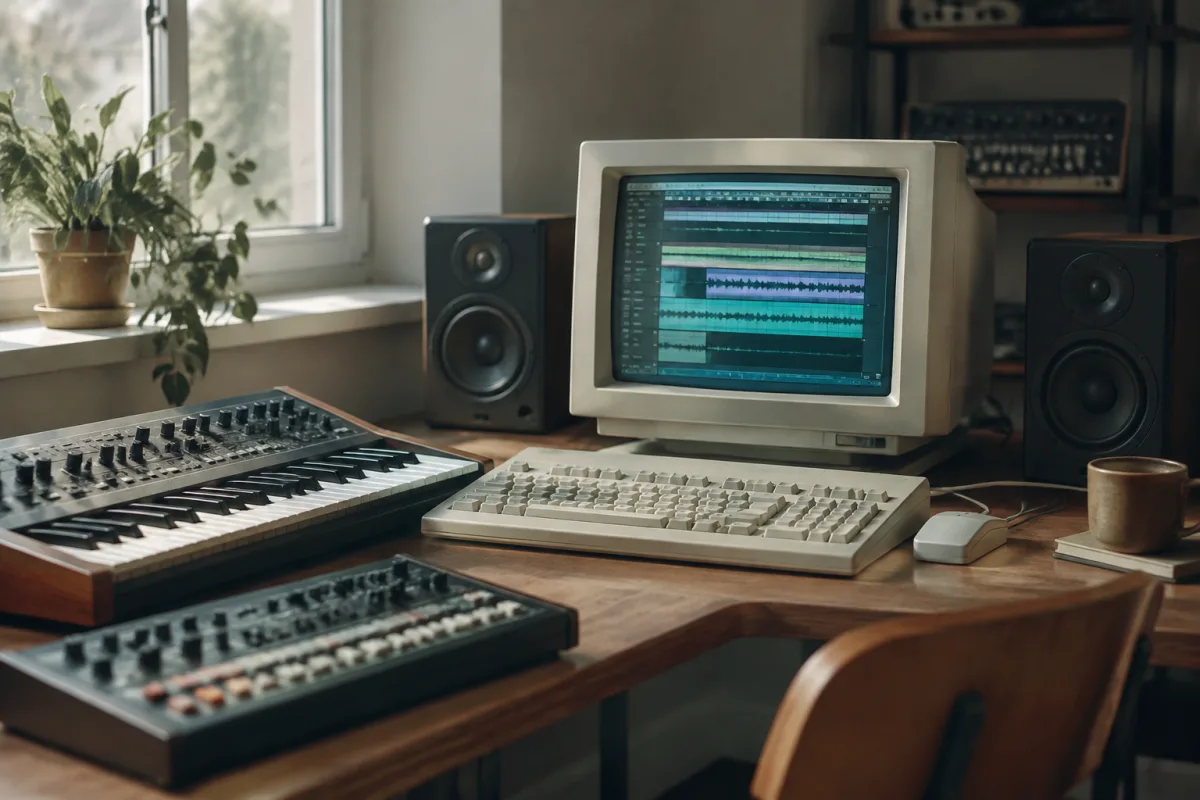
Windows XP remains a surprisingly viable platform for music producers who value stability, compatibility with classic hardware, and straightforward operation. If you're running legacy music software or controllers that refuse to work on modern Windows versions, understanding how to maintain and optimise Windows XP for audio production can extend the life of your setup and preserve access to tools you know inside out.
Why Musicians Still Use Windows XP
Windows XP earned a reputation as one of Microsoft's most stable operating systems, and that reputation holds for music production. Many classic DAWs, synthesisers, and drum machines were optimised for Windows XP during the system's 13-year reign (2001–2014). Some of these applications simply don't run reliably on Windows 7, Windows 10, or Windows 11, even with compatibility mode enabled.
Hardware compatibility is another reason. Older audio interfaces, MIDI controllers, and drum machines often have drivers available only for Windows XP. Upgrading your operating system means losing hardware support unless the manufacturer released drivers for newer systems — and many ceased driver development years ago.
System Requirements and Hardware Considerations
Windows XP for music production requires modest hardware by today's standards, but adequate specifications matter for smooth audio production. Aim for at least a 1.5 GHz processor, 1 GB RAM (ideally 2 GB for comfortable DAW work), and 50 GB free hard drive space. A dedicated audio interface helps reduce CPU load compared to relying on the motherboard's integrated audio.
Storage speed affects latency during recording and playback. Consider installing your DAW and audio files on a separate drive from the operating system. Older mechanical drives work, but a small SSD dedicated to music projects can noticeably improve responsiveness.
Audio Driver Setup and Optimization
Clean driver installation is essential for reliable audio on Windows XP. Download the latest XP-compatible drivers directly from your audio interface manufacturer's website — many still maintain legacy driver archives. Install them fresh, reboot fully, and verify in your DAW's audio settings that the interface appears and responds.
ASIO drivers matter significantly if you use a professional audio interface. ASIO provides lower latency than the standard Windows audio stack, crucial for real-time monitoring and recording. Many interfaces bundled ASIO drivers for Windows XP; check your manufacturer's support page or contact their support team if you've lost the installation media.
Security and Maintenance
Windows XP lost official support in 2014, so security updates no longer arrive. Running it directly on the internet poses genuine risk. Keep your production machine offline or isolated on an internal network, disable internet access in your firewall, and avoid opening email or web browsers on the machine. If you must connect to the network, consider a separate, sandboxed machine for internet tasks.
Regular defragmentation keeps the file system responsive. Windows XP's built-in defragmentation tool works adequately; run it monthly or quarterly depending on your activity. Back up your audio projects, session files, and plugin settings to external storage regularly — mechanical failure on an unsupported system means permanent data loss.
DAW and Plugin Compatibility
Popular DAWs with strong Windows XP support include Cubase 5 and earlier versions, Ableton Live 9, Reaper (which maintained Windows XP compatibility longer than most), FL Studio 11 and below, and Cakewalk Sonar X1 and earlier editions. Verify your chosen DAW explicitly lists Windows XP in its system requirements before purchasing or downloading.
Plugins follow the same pattern — older software runs well, newer software does not. VST plugins released before 2010 generally work reliably on XP. Avoid software that explicitly requires Windows Vista or later. When in doubt, check the publisher's compatibility matrix or contact their support desk.
Common Issues and Troubleshooting
Audio crackling or dropout often stems from outdated or mismatched drivers. Reinstall your audio interface drivers from scratch, ensuring they're genuinely XP-native and not Vista/7 drivers installed in compatibility mode. Increase your buffer size in your DAW to reduce CPU load and mitigate dropouts.
MIDI controller not recognized? Update its drivers first. If drivers don't exist for Windows XP, try right-clicking the device in Device Manager, selecting Properties, and enabling Compatibility Mode for Windows 98 or XP SP3. Some older MIDI devices respond to this, though results vary.
Blue screen crashes usually indicate a driver conflict. Disable unused hardware in Device Manager, update every driver to its latest XP-compatible version, and check for overheating (especially if your PC is older). Thermal paste degradation over years can cause system instability — professional cleaning may help.
Alternatives and Modern Parallels
If Windows XP feels too risky or your hardware fails, consider upgrading to Windows 7, which maintains broad legacy software support and still receives some third-party security updates. Alternatively, explore Linux distributions like Ubuntu Studio with WINE, which can run some Windows-native DAWs and plugins through compatibility layers.
Virtual machines offer another route: run Windows XP in VirtualBox or VMware on a modern host system, isolating it entirely from the internet while maintaining your classic setup. This preserves your workflow without exposing your network to XP's security vulnerabilities.
The Bottom Line
Windows XP for music production music production works reliably if you understand its constraints and plan accordingly. Use it for what it does best—stable operation of proven, classic tools—while keeping security in mind. Invest time in proper driver setup, maintain regular backups, and either isolate the machine from the internet or use virtualisation to protect your network. For musicians deeply invested in vintage software or hardware, Windows XP remains a dependable platform that continues to deliver exactly what you expect.


Comments